eGovPH App Guide (2026): How to Register, Access Digital IDs, and Use Government Services on Your Phone?
Going to a government office just to get a simple document, check your SSS contributions, or present an ID is a hassle. For most Filipinos, this has long been the norm, time-consuming, frustrating, and something you just have to deal with, especially when requirements are repetitive and services are spread across different agencies.
To address these challenges, the government introduced the eGovPH App, a centralized digital platform developed by the Department of Information and Communications Technology (DICT). Designed as a “super app,” it brings together over 1,000 government services in a single mobile application from digital IDs and eTravel forms to appointments and online payments.
Instead of jumping from one office (or website) to another, you can now handle many of these transactions straight from your phone.
In this article, you’ll learn everything you need to know to download the eGovPH app, set up your account, access your digital IDs, and use it for everyday government transactions in 2026.
Table of Contents
What Is the eGovPH Super App?
The eGovPH Super App is the Philippine government’s official mobile app for accessing public services in one place. It was developed by the Department of Information and Communications Technology (DICT) as part of the country’s push toward digital governance, supported by the E-Governance Act (Republic Act No. 12254) signed by Ferdinand Marcos Jr. in September 2025.
This law requires government agencies to offer their services online and connect them through one central platform, eGov PH.
Before this app, Filipinos had to use different websites or apps for each agency (like SSS, PhilHealth, or LTO), each with separate logins and requirements. Many transactions also required visiting offices and submitting the same documents multiple times.
With just one account, you can access services across different agencies—without needing separate logins or repeated verification, making transactions faster and more convenient.
| Without eGovPH App | With eGovPH App |
| Separate apps for each agency | One app for all services |
| Long queues for basic transactions | Schedule appointments from your phone |
| Submit same documents to multiple offices | Verify once, recognized across agencies |
| Physical IDs required at all times | Digital IDs stored and viewable offline |
| Unfilled eTravel forms cause airport delays | eTravel QR generated in under 5 minutes |
What Can You Actually Do With the eGovPH App?
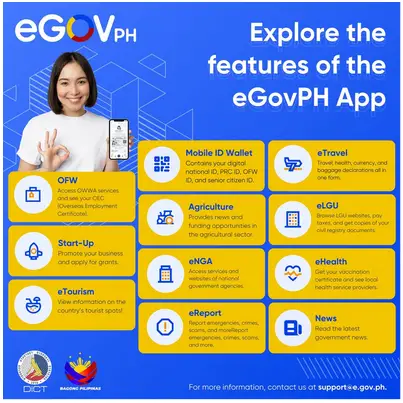
One of the strongest selling points of the eGovPH app is the variety of services it consolidates. As of 2026, the app connects to over 1,000 government systems through the eGovDX data exchange platform. Here is a breakdown of the major service categories:
| Feature / Category | What You Can Do |
| Digital ID Wallet | Access your ePhilID (National ID), eDL (Driver’s License), PRC Professional ID, PhilHealth ID, eHealth ID, OFW ID, Senior Citizen ID — viewable even offline (given that you have logged in and loaded your Digital ID while online, you can access it later without an internet connection) |
| eTravel | Generate your electronic travel declaration QR code for international arrivals and departures — no more paper forms at the airport |
| BPESH Hub | Schedule NBI Clearance and Police Clearance appointments, request PSA civil registry documents (birth/marriage/death cert), request National ID paper copy |
| Social Services | Access portals for SSS, GSIS, PhilHealth, and Pag-IBIG for inquiries and transactions |
| SIM Registration | Register or manage your SIM card registration status |
| Consultation Services | Submit queries or requests to ARTA, DFA, DOLE, DMW, PNP, and PAO (for free legal counseling) |
| Employment & Livelihood | Browse DOLE job listings, apply for SPES (student employment), Government Internship Program, DOLE Integrated Livelihood Program |
| eReport | File incident reports for crimes, accidents, fire, women and child abuse, and scams — forwarded directly to the relevant agency |
| eGovPay | Pay government fees, taxes, SSS contributions, loans, and fines via GCash, Maya, or OFBank — no need to go to a payment center |
| AI Chat Assistant | Get 24/7 multilingual support for navigating services, finding requirements, and answering FAQs about government transactions |
| Appointment Hub | Central calendar for scheduling agency visits, tracking renewal dates, and monitoring benefit releases |
Who Can Use the eGovPH App?
The eGovPH app is available to any Filipino citizen who is at least 18 years old. You do not need to be employed, enrolled in school, or registered with any specific government agency to download and use it. That said, the level of access you get depends on whether your account is verified or not.
An unverified account only gives you access to the Tourism tab, which shows featured tourist destinations with directions. To unlock all the app’s features, you need to complete the verification process which requires a National ID or PhilSys number.
Here is a quick look at who will find the app most useful:
- Employed professionals — check SSS contributions, PhilHealth records, Pag-IBIG balance, or access your digital employee-related IDs without going to their respective offices.
- Frequent travelers — generate your eTravel QR code before every international trip, directly from your phone.
- OFWs abroad — access government services remotely. The app works anywhere with internet access.
- Students — apply for government internships or the Special Program for Employment of Students (SPES) through the app.
- Self-employed and small business owners — access DOLE livelihood programs and submit documents for government services without taking a day off to fall in line.
- Senior citizens and PWDs — the app’s digital ID feature means no more losing physical cards or carrying multiple IDs.
| IMPORTANT: The app is currently only available on mobile — Android and iOS. There is no desktop browser version. If you cannot find it on the Play Store or App Store, search for ‘eGovPH’ (no space) — the official publisher is the Department of Information and Communications Technology. |
Before You Start: Requirements and Limitations
Before downloading, here are a few important things to know:
- The app is mobile-only (Android and iOS)
- You must be 18 years old or above
- Full access requires a PhilSys number or National ID
- Without verification, you’ll only have limited access (mainly the Tourism tab)
How to Download the eGovPH App?
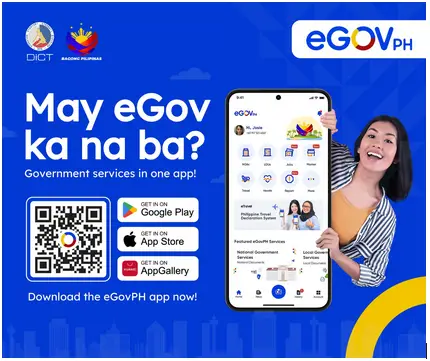
Downloading the app only takes a few minutes. Before you start, make sure your phone has a stable internet connection — the app is about 17MB on Android and around 59MB on iOS, so connecting to WiFi is a good idea.
STEP 1
Open the Google Play Store on your Android phone or the Apple App Store on your iPhone. Make sure you are using the store account registered to your device — you do not need to create a new account just for this.
STEP 2
In the search bar, type ‘eGovPH’.
STEP 3
Tap Install (Android) or Get (iOS) and wait for the download to finish. Depending on your connection speed, this should take under two minutes on WiFi.
STEP 4
Once installed, tap Open to launch the app. You will be greeted by a welcome screen that lets you choose between logging in or registering a new account.
| TIP: The app is completely free to download and use. However, some government transactions processed through the app such as NBI Clearance or PSA document requests carry their own processing fees, which you can pay via eGovPay right inside the app. |
How to Register and Verify Your Account?
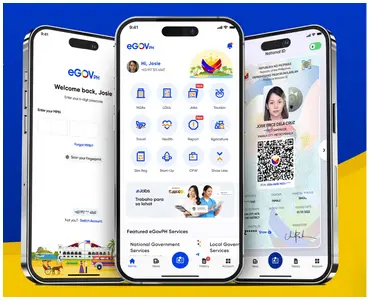
Setting up your account is a two-part process. The first part creates your basic account, and the second part verifies your identity so you can access all of the app’s features. Most people complete Part 1 in under five minutes while Part 2 takes a little longer because it involves identity verification.
Part 1: Creating Your Account
STEP 1
Open the app and tap Get Started or Register whichever option appears on your welcome screen.
STEP 2
Enter your mobile number. The app will send a One-Time PIN (OTP) to that number via SMS. Make sure you are using a number that you have regular access to, because you will need it every time you log in.
STEP 3
Enter the OTP in the field provided and tap Confirm.
STEP 4
Create your 6-digit MPIN (Mobile PIN). This is your login code every time you open the app. Choose something you will remember, not your birthday or a sequential number (for safety), and write it down somewhere safe.
STEP 5
Enter your email address and verify it by clicking the confirmation link the app sends to your inbox. Check your spam folder if you do not receive it within a few minutes.
At this point, your account exists but it is unverified. That means you can only access the Tourism tab, which shows tourist destinations. To use the digital IDs, eTravel, government services, and everything else this guide covers, you need to complete verification.
Part 2: Verifying Your Account
Account verification links your profile to your Philippine Identification System (PhilSys) record. This is what allows the app to display your official government IDs and give you access to all services.
STEP 1
From the home screen, go to your Profile and tap Verify Account or follow the prompt the app displays when you try to access a feature that requires verification.
STEP 2
Fill in your personal information as it appears on your government records: full name, date of birth, home address, sex, and nationality. Accuracy matters here, any mismatch with your PhilSys record will cause an error.
STEP 3
Enter your PhilSys Card Number (PCN). You can find this on your physical National ID card, your ePhilID printout, or your PhilSys acknowledgment slip from your Step 2 registration. Alternatively, you can scan the QR code on your National ID if you have the physical card.
STEP 4
Complete the face verification or liveness check. The app will ask you to take a live selfie or follow on-screen prompts (such as blinking or turning your head). Make sure you are in a well-lit area and that your face is not covered.
STEP 5
Wait for the verification confirmation email. This usually arrives within a few hours, but in some cases it can take up to a day. Once approved, all features will unlock the next time you log in.
| NOTE: If you do not have a National ID or PhilSys number yet, you can still create an unverified account, but you will not be able to access most features. We strongly recommend completing your National ID Step 2 (biometric registration) first. |
How to Use eTravel (Most Popular Feature)?
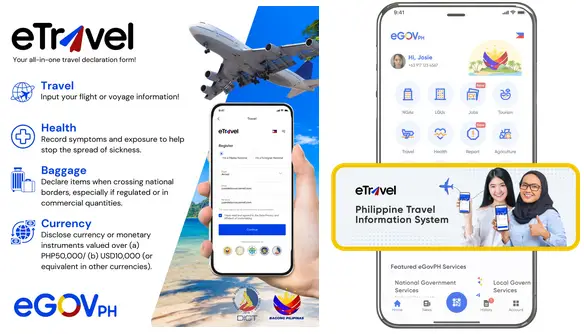
If there is one feature that has convinced millions of Filipinos to download the eGov PH app, it is eTravel. Before it existed, arriving and departing passengers had to fill out multiple paper forms at the airport like immigration cards, health declarations, customs forms, sometimes in a rush right before the immigration counter. Now, you fill everything out in advance on your phone and walk through with a single QR code.
eTravel is required for all passengers arriving in the Philippines, both Filipinos and foreigners. For departures, it is mandatory for departing Filipino passengers (foreign nationals leaving the Philippines are exempt). Either way, registration must be done within 72 hours before your flight, not earlier, as the system will not accept it.
STEP 1
From the eGovPH app home screen, tap eTravel. You do not need to be logged in to use this feature. it is accessible even without an account.
STEP 2
Select whether you are arriving in the Philippines or departing. The form fields will adjust based on your selection.
STEP 3
Fill in the required details: your passport number, passport expiry date, flight number, arrival or departure date, and your accommodation address in the Philippines. You will also complete a brief health declaration.
STEP 4
Review everything carefully and tap Submit. The app will generate your eTravel QR code immediately.
STEP 5
Show or scan your QR code at the airport immigration or arrival counter. Bureau of Immigration officers will scan it as part of the arrival process.
| TIP: Fill out the eTravel form at least 72 hours before your scheduled flight. Last-minute submissions sometimes lead to delays in QR code generation, especially during high-traffic travel periods. You can also access eTravel directly at etravel.gov.ph if you prefer the browser version, both are official and produce the same QR code. |
How to Access Your Digital Government IDs?
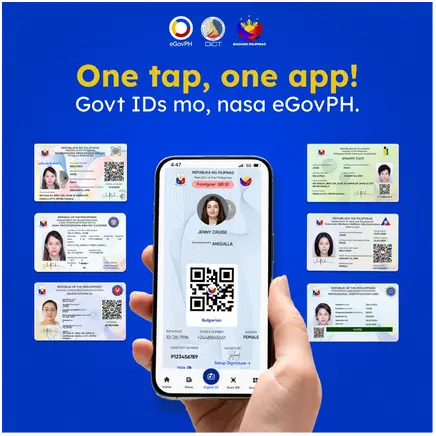
One of the most practical things the eGovPH app does is store your government IDs digitally, so you do not have to carry a wallet full of cards everywhere you go. All your IDs are in one place, they load almost instantly, and they even work offline once you have opened the app at least once with an internet connection.
As of 2026, the following digital IDs are available through the eGovPH app:
- Digital National ID (ePhilID) — official PhilSys ID
- LTO eDriver’s License (eDL) — from the Land Transportation Office
- Digital Senior Citizen ID — for eligible seniors
- ePhilHealth Card — from Philippine Health Insurance Corporation
- ePRC License — for licensed professionals under the Professional Regulation Commission
- Foreigner QR ID — for registered foreign nationals
- OFW eCard — from the Department of Migrant Workers
- TIN ID — from the Bureau of Internal Revenue (newly added)
NOTE:
Some IDs are still being rolled out and may not appear for all users. More IDs are expected to be added as the app expands. This list is based on availability as of 2026.
How to View Your Digital IDs?
STEP 1
From the home screen, look for the Mobile ID tab on the home dashboard. Tap it to see all IDs currently linked to your verified account.
STEP 2
Tap any ID card to expand it. You will see your photo, full name, ID number, and other details, along with a QR code at the bottom.
STEP 3
To share your ID for verification purposes, tap the QR code icon. The recipient, whether a government officer, bank teller, or establishment staff can scan it using the eGovPH app or a compatible QR reader to confirm your identity.
| TIP: Your digital IDs work offline. As long as you have opened the app at least once with internet, the ID data is cached locally on your phone. This is useful at checkpoints or establishments with poor signal. |
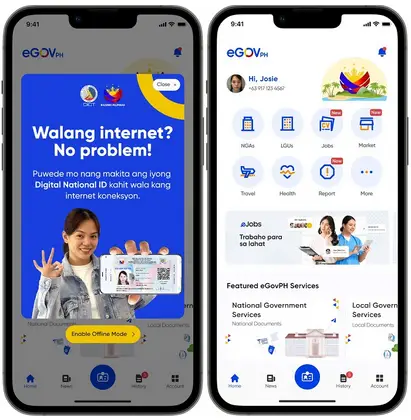
A common question is whether digital IDs are legally valid in the Philippines. The short answer is yes, the Philippine Identification System Act (RA 11055) already recognizes the ePhilID as a valid government-issued ID, and the E-Governance Act (RA 12254), which took effect in April 2026, further pushes all agencies to accept and process digital transactions. In practice, though, acceptance still varies, some private establishments, especially outside major cities, may still ask for a physical card. It’s still a good idea to keep your physical ID handy when dealing with institutions that aren’t fully digital yet.
How to Use the Government Services Hub (BPESH)?
BPESH stands for Bagong Pilipinas eGovPH Serbisyo Hub. It is a feature inside the eGovPH app where you can access selected government services such as booking appointments, requesting documents, and applying for assistance without immediately going to an agency office.
However, not all services are fully integrated yet. Some may redirect you to official agency systems or have limited features depending on availability.Here are the main things you can do inside BPESH:
What You Can Do in BPESH?
1. NBI Clearance Appointment
You can start your NBI Clearance application through the app. Depending on the current setup, you may either complete the booking inside the app or be redirected to the official system of the National Bureau of Investigation.
You’ll enter your details and choose your appointment schedule. Final processing still follows NBI procedures.
2. PSA Civil Registry Requests
You can request documents like birth, marriage, or death certificates through the Philippine Statistics Authority.
In most cases, the app connects you to PSA’s official request channels. You provide the required details and select delivery options. Processing and delivery timelines depend on PSA.
3. National ID (ePhilID) Paper Copy Request
If you’ve completed PhilSys registration but haven’t received your physical card, you may request a printed copy of your ePhilID through the app (if the option is available in your account).
This serves as a valid alternative while waiting for the physical ID.
| NOTE: Booking through the BPESH hub speeds up submission but does not change agency processing times. If your NBI Clearance is delayed, the issue is on the NBI’s end, not the app’s. For concerns about specific transactions, contact the agency directly. |
How to Use Consultation Services, Employment Features, and eReport?
Consultation Services
This feature lets you send concerns or requests directly to government agencies—without needing to visit their offices. Available agencies include:
- ARTA (Anti-Red Tape Authority) — for complaints about slow or unfair government service
- DFA (Department of Foreign Affairs) — for passport and consular concerns
- DOLE (Department of Labor and Employment) — for labor rights complaints and employment assistance
- DMW (Department of Migrant Workers) — for OFW-related concerns
- PNP (Philippine National Police) — for police-related matters
- PAO (Public Attorney’s Office) — for free legal assistance and counseling
How it works:
Select the agency, enter your concern, and upload supporting documents if needed. You’ll receive updates through the app or via email, depending on the agency.
Employment and Livelihood Programs
The app has a dedicated section for employment and livelihood, which is especially useful for students, job seekers, and those who want to start a small business:
- DOLE Job Search — Browse current job vacancies from DOLE-registered employers and submit applications within the app.
- SPES (Special Program for Employment of Students) — A government program that gives students part-time work in government offices during school breaks. Apply through the app by filling out the SPES application form and uploading your enrollment certificate and other requirements.
- Government Internship Program — For students seeking exposure to government work as part of their academic requirements.
- DOLE Integrated Livelihood Program — For vulnerable and marginalized individuals who want financial assistance to start or grow a small business. Requirements and eligibility details are listed inside the app before you submit.
eReport: Filing Incident Reports
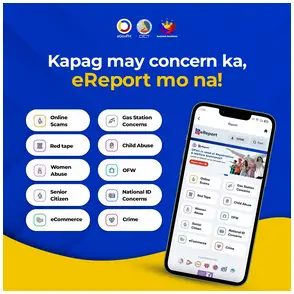
The eReport feature lets you file incident reports digitally, which are forwarded to the appropriate government agency. You can currently report:
- Crimes and criminal incidents (forwarded to PNP)
- Road accidents
- Women and child abuse (forwarded to DSWD and PNP)
- Fire incidents (forwarded to BFP)
- Online scams and fraud
To file a report, tap eReport from the home screen, select the incident type, fill in the details (date, time, location, description), and attach a photo or video if available. You will receive a reference number after submission.
| IMPORTANT: eReport is for reporting incidents, not for requesting emergency response. If you or someone else is in immediate danger, call 911 first. Use eReport for follow-up documentation or non-emergency incident reporting. |
Tips, Limitations, and Things You Should Know Before Using the App
The eGovPH app is genuinely useful, but like any government digital platform, it has real-world limitations that are worth knowing upfront. Here is an honest breakdown:
Things to Do
- Keep the app updated. DICT releases frequent updates that patch bugs and add new features. Version 2.7.4 (April 2026) fixed security vulnerabilities in the WebView and resolved NBI Clearance renewal issues. Outdated versions are more prone to errors.
- Save your MPIN somewhere secure. Resetting it requires re-verifying your identity through the full OTP and liveness check process which takes time and can be frustrating if your flight is in two hours and you forgot your eTravel QR.
- Open your ID wallet at least once on a good connection. Digital IDs are cached offline after the first load, but you have to open them with internet first. Do not wait until you are at a checkpoint with no signal.
- Use WiFi for first-time verification. The liveness check during account verification uploads real-time video, which can fail on a slow mobile data connection.
Known Limitations
- The app is mobile-only. There is no desktop or browser version of eGovPH. If you need to access services on a computer, use the individual agency websites.
- Verification requires a PhilSys number. Without it, your account stays unverified and most features are locked. If you have not completed your PhilSys Step 2 yet, that is the first step.
- Agency response times are outside the app’s control. The app is a submission and access platform, if your NBI clearance takes two weeks, that is an NBI capacity issue, not an app issue.
- Not all private establishments accept digital IDs yet. Despite RA 12254 recognizing digital IDs, enforcement among private banks and businesses is still uneven. Carry your physical IDs when going somewhere new.
- The app is for Filipinos 18 and above. There is no family or guardian account feature for minors.
Common Issues and How to Fix Them
| Problem | What to Do |
| ‘No internet connection’ error during identity validation | Go to your phone’s Settings > Apps > eGovPH > Permissions and grant access to Photos and Videos. This is a common cause of this error. |
| Liveness check fails repeatedly | Move to a brighter area. Remove glasses, face mask, or hat. Avoid backlighting. Older phones with lower front cameras sometimes struggle, try using a different device. |
| Name mismatch error during verification | Your name must match your PhilSys record exactly including middle name and suffixes. If there is a discrepancy in your PhilSys record, contact PSA directly first. |
| Account stuck in ‘verification pending’ for more than 2 days | Email [email protected] with your registered mobile number and a screenshot of your verification status. Include a screen recording of the issue if possible. |
| Forgot MPIN | On the login screen, tap ‘Forgot MPIN.’ You will go through the OTP and liveness check process again to reset it. |
Frequently Asked Questions (FAQs)
Is the eGovPH app free?
Yes. Downloading and creating an account on the eGovPH app is completely free. Some government transactions you access through the app such as NBI Clearance or PSA document requests carry their standard government processing fees, which you can pay via eGovPay inside the app. There are no subscription fees or premium tiers.
What if I don’t have a National ID yet? Can I still use the app?
You can download the app and create a basic account without a National ID, but your access will be very limited, only the Tourism tab is available to unverified accounts. To unlock everything, you need a PhilSys number. If you have completed PhilSys Step 1 (online registration) but not Step 2 (biometrics), you may have a reference number, but verification in the app typically requires a confirmed PhilSys Card Number. We recommend completing your PhilSys registration first.
Is my personal data safe on the eGovPH app?
The app is built to comply with the Data Privacy Act of 2012, and the DICT is the registered data controller. All data submitted through the app is encrypted in transit. You can also request that your data be deleted, the option is available through the app’s settings. That said, using the app means you are sharing certain personal information with specific government agencies when you access their services. The app clearly lists what data is shared and with which agency before you proceed with any transaction.
Can I use the eGovPH app if I’m abroad?
Yes. The app works anywhere with an internet connection, making it particularly useful for OFWs who need to access Philippine government services remotely. eTravel is also accessible from abroad, you can fill out your travel declaration before your flight home and arrive with your QR code already ready.
Is the digital driver’s license (eDL) legally accepted at LTO checkpoints?
Under RA 12254 (effective April 2026), digital government IDs are legally recognized. In practice, LTO enforcement officers are increasingly trained to accept digital IDs via the eGovPH app. However, acceptance is not yet universal across all checkpoints, especially outside Metro Manila. For now, carrying your physical driver’s license alongside the digital version is still the safest approach.
Is the eGovPH app the same as eTravel?
eTravel is one feature within the eGovPH app. It is also separately accessible at etravel.gov.ph, so you do not need to download the full app just to use eTravel. Both the app and the website are official and generate the same QR code.
How do I report a problem or give feedback about the app?
You can email the DICT support team at [email protected]. Include your registered mobile number, a description of the issue, and a screenshot or screen recording if possible. For urgent concerns about specific agency transactions, contact that agency directly, the eGovPH support team handles app-related issues, not agency processing matters.
Summary
Here is a quick recap of everything you need to know about the eGovPH Super App:
- The eGovPH Super App is a free DICT-developed mobile app that connects Filipinos to over 1,000 government services from a single platform.
- It is available on Android and iOS. Search for ‘eGov PH’ — the official publisher is the DICT.
- Anyone 18 and above can register, but full access requires account verification using a PhilSys number or National ID.
- Your digital IDs — ePhilID, eDL, PRC ID, PhilHealth ID, and more — are stored in the app’s ID Wallet and can be viewed offline.
- Under RA 12254 (effective April 2026), digital government IDs from the app are legally recognized in the Philippines.
- eTravel is the app’s most-used feature. Fill out your travel declaration at least 72 hours before your flight and present the QR at the airport.
- BPESH lets you schedule NBI Clearance and Police Clearance appointments, request PSA documents, and apply for government assistance.
- New features include eReport (file incident reports), employment programs (SPES, DOLE jobs), Consultation Services (PAO, DFA, ARTA), and eGovPay.
- Common issues like liveness check failures or ‘no internet’ errors are usually fixed by granting app permissions or updating to the latest version.
- For support, email [email protected]. For emergencies, always call 911 first.
The eGovPH Super App is not perfect, agency response times are still what they are, and not every private establishment has caught up with digital ID acceptance. But as a tool for cutting down unnecessary trips to government offices, it is one of the most practical things a Filipino can have on their phone right now.
If you have been putting off downloading it, this is your sign to go ahead. Register, verify your account, and spend 20 minutes exploring what is available. You might be surprised at how much you can actually do without leaving home.
References
Department of Information and Communications Technology (DICT) — Official eGovPH page: dict.gov.ph/egov-digital-platforms
eGovPH Official Website: e.gov.ph
Republic Act No. 12254 (E-Governance Act) — Wikipedia / Official Gazette of the Philippines
Philippine Information Agency — ‘eGovPH Super App: The future of gov’t services at your fingertips’ (July 21, 2025)
PhilSTAR Life — ‘GUIDE: eGovPH Super App’s new features and how to use them’ (July 19, 2025)
Biometric Update — ‘Philippines digital government super app integrates 1,000 services’ (June 2025)
Images from eGOVPH Facebook Page
Google Play Store — eGovPH App
Apple App Store — eGovPH App
Disclaimer
The information in this article was accurate at the time of writing (April 2026). Government policies, app features, and agency procedures may change without prior notice. Always verify current requirements and procedures with the relevant government agency or through the official eGovPH app (e.gov.ph). FilipiKnow is not affiliated with the DICT or any Philippine government agency.
Other Article: How to Get Electronic Driver’s License (eDL) in the Philippines (Your Complete Guide 2026)
Written by FilipiKnow
in DITC, Government Services, Identification, Juander How, Technology
Last Updated

FilipiKnow
FilipiKnow strives to ensure each article published on this website is as accurate and reliable as possible. We invite you, our reader, to take part in our mission to provide free, high-quality information for every Juan. If you think this article needs improvement, or if you have suggestions on how we can better achieve our goals, let us know by sending a message to admin at filipiknow dot net
Copyright Notice
All materials contained on this site are protected by the Republic of the Philippines copyright law and may not be reproduced, distributed, transmitted, displayed, published, or broadcast without the prior written permission of filipiknow.net or in the case of third party materials, the owner of that content. You may not alter or remove any trademark, copyright, or other notice from copies of the content. Be warned that we have already reported and helped terminate several websites and YouTube channels for blatantly stealing our content. If you wish to use filipiknow.net content for commercial purposes, such as for content syndication, etc., please contact us at legal(at)filipiknow(dot)net